AI Tools Access Control: How SMEs Decide Which Apps Assistants Can Use
A practical access-control workflow for SMEs using AI tools, with app permissions, approval gates, audit logs, and safe SaaS handoffs.
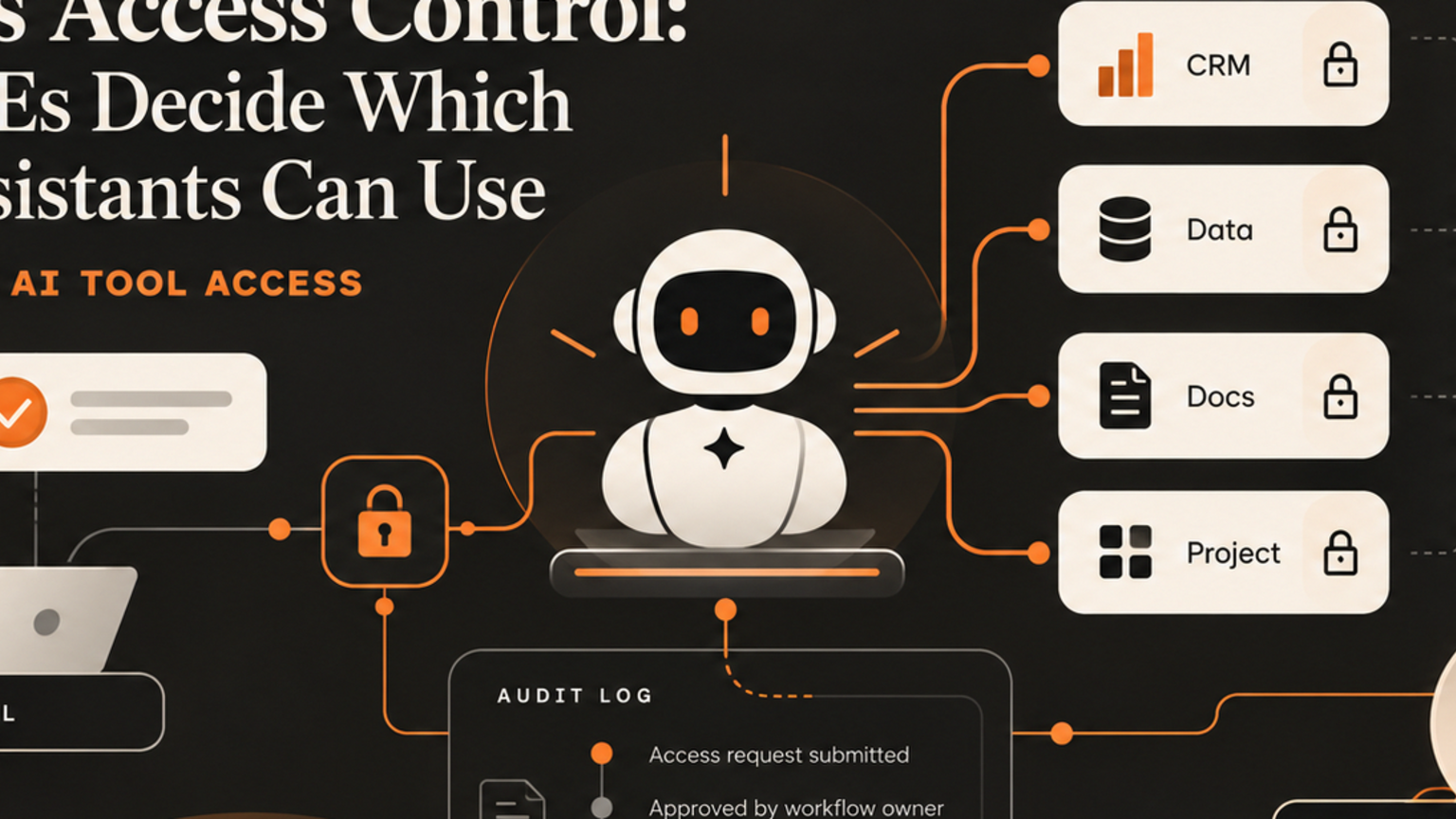
AI tools access control helps SMEs decide which business apps an assistant can reach, what actions need approval, and where every decision is logged before AI touches customer work. AI tools are becoming easier for staff to connect to inboxes, drives, CRMs, support desks, calendars, and workflow builders. That is useful, but it also creates a new operating question for founders and operations leads: who decides what the assistant can actually do? The answer is not another subscription. It is an access-control workflow with owners, approval gates, audit logs, and clear stop rules.
Quick answer
AI tools access control is the process of deciding which apps, files, records, and actions an AI assistant may use inside a business. For SMEs, the safest setup separates read-only help from write actions, requires human approval before sensitive changes, and stores an audit trail that shows the request, data source, recommendation, approver, and final action.
Vendor controls help, but they do not replace workflow ownership. OpenAI says workspace administrators can manage plugin installation, app access, actions, provider permissions, and supported indexing for business and enterprise workspaces.[1] OpenAI also says business products do not use organization data for model training by default and that data is encrypted at rest and in transit.[2] Those are useful platform protections. The business still needs to decide which workflows are safe enough for AI assistance.
What is AI tools access control?
AI tools access control is the business rulebook for how an AI assistant connects to SaaS tools and workflow systems.
It answers five questions:
Which tools can the assistant see?
Which records can it read?
Which actions can it prepare?
Which actions can it complete only after human approval?
Which actions are never allowed?
This matters because an assistant that reads a support inbox is not the same risk as an assistant that refunds a customer, changes a CRM status, sends a sales email, edits a contract, or updates a finance record.
The NIST AI Risk Management Framework describes AI risk work through govern, map, measure, and manage functions, with governance informing other activities across the AI lifecycle.[3] For an SME, that means map the workflow before connecting the tool, measure action risk, govern approvals, and manage exceptions after launch.
Where AI tools create business risk
Most SMEs do not get into trouble because one AI answer is imperfect. They get into trouble because the assistant is allowed to act inside a live workflow without enough context.
Common risk points include:
A sales assistant reading the wrong account notes and writing a confident but inaccurate follow-up.
A support assistant closing tickets before a human checks the customer impact.
A marketing assistant using files from the wrong folder or an outdated offer.
A browser-controlled agent submitting a form, order, or update without a final approval step.
A finance or operations assistant changing records without a rollback note.
The pattern is the same. AI is close to useful work, but the workflow does not show who owns the decision.
Practical checklist before connecting AI tools to SaaS apps
Use this checklist before adding an assistant to Google Workspace, Microsoft 365, Slack, HubSpot, Zendesk, Notion, Airtable, Zapier, n8n, Make, or a browser workflow.
1. List every app the assistant may touch.
2. Mark each permission as read, prepare, or act.
3. Define sensitive records, such as customer, staff, payment, legal, or private inbox data.
4. Decide which actions need approval every time.
5. Decide which low-risk actions can run automatically.
6. Assign a workflow owner who reviews logs weekly.
7. Store prompts, data sources, draft outputs, approvals, and final actions.
8. Create stop rules for unusual requests, missing data, high-value accounts, complaints, refunds, contracts, payments, or external submissions.
9. Test with sample records before live data.
10. Review permissions after launch and after every workflow change.
This checklist keeps AI tools useful without turning them into hidden shadow operations.
Workflow example: AI assistant for lead routing
Imagine an SME wants an AI assistant to help with inbound leads.
The assistant can read the contact form, classify the request, suggest the right service, draft a CRM note, and prepare a reply. That is useful. But the workflow should not let the assistant send the reply, change deal stage, or assign a priority account without human review on day one.
A GOFTUS-style workflow would split the process into four lanes:
Observe: read the form, source page, CRM history, and previous conversation.
Prepare: draft the CRM note, lead score, next step, and reply.
Approve: ask the sales owner to confirm routing, message, and urgency.
Act: update CRM and send the reply only after approval.
The audit log stores the source fields, assistant recommendation, human decision, and final action. If the workflow performs well for low-risk enquiries, the business can automate more later. High-value leads, complaints, partnership requests, and unusual data stay behind an approval gate.
Common mistakes with AI tools access control
The first mistake is giving an assistant broad access because it feels easier than designing lanes. Broad access saves setup time but creates unclear responsibility when something goes wrong.
The second mistake is confusing platform settings with business governance. Admin settings decide what the software permits. Workflow governance decides what your team should approve, measure, and improve.
The third mistake is treating every action equally. Reading a document, drafting an email, updating a CRM field, and submitting a website form have different risk levels.
The fourth mistake is skipping logs. If the business cannot see what the assistant read, prepared, approved, and changed, it cannot improve the workflow.
The fifth mistake is launching without a fallback. If the assistant is unavailable, uncertain, or blocked by a permission issue, the workflow needs a human route.
Internal CTA: start with one controlled workflow
Do not connect every AI tool to every SaaS app at once. Start with one workflow that already creates drag: lead routing, support triage, quote preparation, document review, reporting, CRM updates, or FAQ follow-up.
GOFTUS maps the task, data sources, approval gates, audit logs, and handoff rules before automation scales. Review /services, explore agent controls at /agents, read buyer questions at /questions, or book a workflow diagnostic through /contact.
For a related implementation angle, see /blog/ai-tools-business-approval-gates-before-technical-debt-20260917.
FAQ
What is AI tools access control?
AI tools access control is the set of rules that decides which apps an AI assistant can reach, what data it can read, what actions it can prepare, and what actions require human approval before completion.
How should SMEs decide which apps AI assistants can use?
SMEs should start with the workflow outcome, then grant the smallest permission set needed. Read-only access is safer for early tests. Write actions, external messages, CRM changes, refunds, submissions, and customer-impacting decisions should start behind approval gates.
Are platform admin controls enough for safe AI tool use?
No. Platform admin controls are necessary, but they are not the whole operating model. The business still needs workflow owners, risk lanes, approval rules, audit logs, fallback routes, and regular review.
When should an AI assistant ask before acting?
An AI assistant should ask before acting when it touches customer data, staff data, money, contracts, complaints, public messages, external websites, CRM stages, support resolution, or anything that changes a customer or operational record.
How does GOFTUS help with AI tools access control?
GOFTUS maps the workflow, defines permissions, builds approval gates, connects audit logs, and routes actions through CRM, support, document, reporting, or browser-controlled workflows only where they are safe.
Sources
[1] OpenAI Help Center: Admin controls for plugins and apps: https://help.openai.com/en/articles/11509118-admin-controls-security-and-compliance-in-connectors-enterprise-edu-and-team?LanguageId=1
[2] OpenAI: Business data privacy: https://openai.com/business-data
[3] NIST AI RMF Core: https://airc.nist.gov/airmf-resources/airmf/5-sec-core/